The short answer
To set an out of office on iPhone, turn on the auto-reply in the app that holds your work email: Automatic Replies in Outlook, Vacation responder in Gmail, or Automatic Reply in Settings for an Exchange account in Apple Mail. iCloud Mail’s auto-reply is set on iCloud.com, and most other IMAP accounts need their provider’s webmail. Then add a vacation range in Out of Office so your work apps stay shut until the morning you’re back.
Out of office in Apple Mail (Exchange or Microsoft 365)
If your work email is a Microsoft Exchange or Microsoft 365 account added to Apple’s Mail app, the auto-reply is in the Settings app, not in Mail itself.
- Open SettingsAppsMailMail Accounts. On older versions of iOS, Mail has its own entry in Settings instead of sitting under Apps.
- Tap your Exchange account.
- Tap Automatic Reply, turn it on and write your message.
The reply is saved on your company’s mail server, so it keeps going when your phone is off. The exact options on that screen depend on your server. If you don’t see Automatic Reply at all, the account probably isn’t set up as Exchange. Use the Outlook app instead, below.
Out of office in the Outlook app on iPhone
Outlook for iOS can set automatic replies for Microsoft 365, Exchange, Exchange (Hybrid) and Outlook.com accounts.
- Open Outlook and go to Settings.
- Tap your work account, then Automatic Replies, and turn the switch on.
- Turn on Reply during a time period and set the start and end, so it switches itself off.
- Write your message and tap Save.
You can also reply only to people in your organization, send outsiders a different message, and block your calendar for the same dates. The full walkthrough is in how to set out of office in Outlook on iPhone.
Out of office in the Gmail app on iPhone
Gmail calls it a vacation responder, and you can set it from the app.
- Open Gmail, tap Menu at the top left, then Settings. If you have more than one account, pick your work account.
- Under “Compose and Reply”, tap Vacation responder and turn it on.
- Enter the date range, subject and message. Turn on Send only to my Contacts if you’d rather strangers didn’t hear you’re away.
- Tap Save.
It starts at 12:00 AM on the first day and stops at 11:59 PM on the last. Details, including how often the same person gets it, are in setting out of office in Gmail on iPhone.
iCloud Mail and other email accounts
iCloud Mail
iCloud Mail does have an auto-reply, but Apple’s instructions use iCloud.com rather than the Settings app. Go to icloud.com/mail, open the settings menu at the top of the Mailboxes list, choose Settings, then Auto-Reply. Tick “Automatically reply to messages when they are received”, write your message and set an optional date range. Someone who writes several times gets one reply in a 24-hour period.
Apple notes that iCloud.com shows a different set of features on a phone than on a computer. If you can’t find Auto-Reply in Safari on your iPhone, set it from a computer before you leave.
IMAP accounts (Yahoo, your web host, and the rest)
Apple Mail only offers Automatic Reply for Exchange accounts, and Outlook for iOS only for Microsoft accounts. For anything else, the auto-reply lives with your email provider, so sign in to its webmail and look for a setting called vacation, auto-reply or out of office.
Set out of office in Teams and Slack from your phone
Email is only half of it. Colleagues who message you in chat should see you’re away too.
- Microsoft Teams: tap your profile picture, tap your current status, choose Out of office, turn on Set auto reply and pick your start and end dates. It syncs with Outlook automatic replies. Steps and gotchas are in how to set out of office in Teams on iPhone.
- Slack: tap your profile picture, tap the status field, type a status like “On vacation until Monday”, pick an emoji, and use Clear after to choose when it disappears. More in setting an out of office status in Slack.
The reply says you’re away. Now stay away.
An auto-reply tells everyone else you’re out. It does nothing to stop you opening Outlook at the airport “just to check”. For that, two more steps:
- Silence it. Go to SettingsNotifications, tap the mail app and turn off Allow Notifications. Do the same for Teams and Slack.
- Keep it closed. Screen Time’s Downtime repeats by day of the week and blocks everything except an allowed list, so it has no simple “until the 14th”.
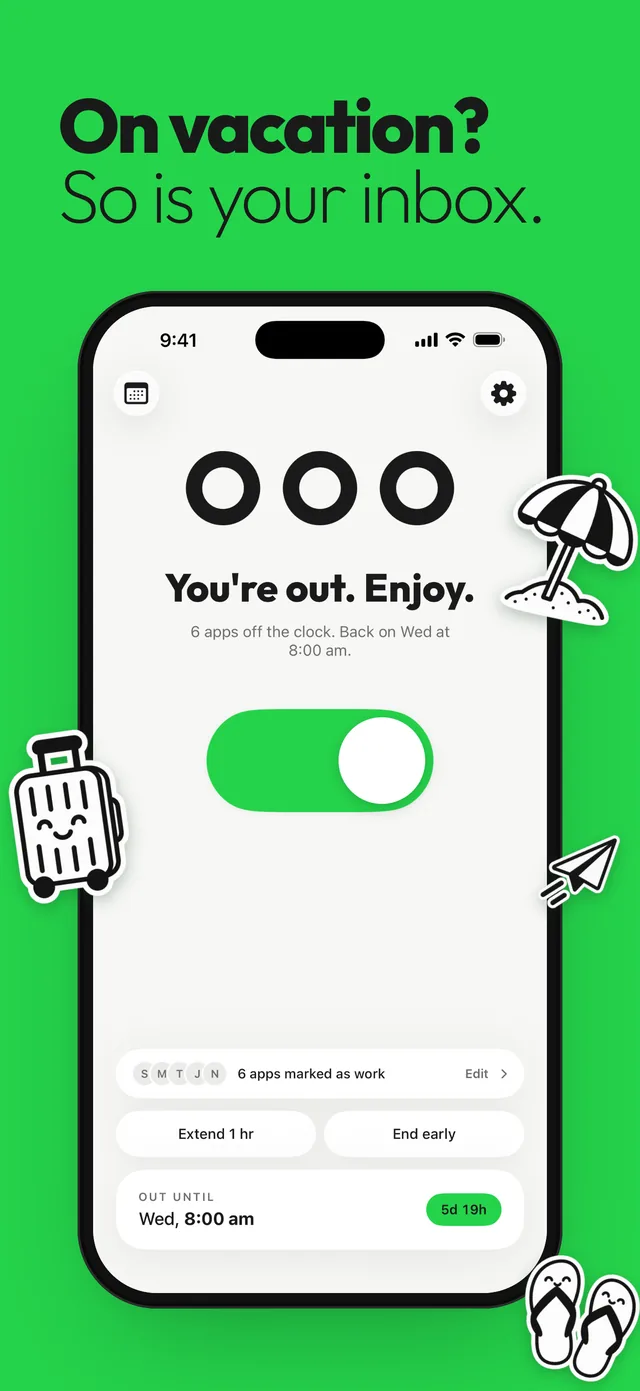
Out of Office has a Vacation schedule: a one-off date range with a start and an “Unblocks” time. Pick your work apps once with Apple’s app picker, set the range, and Outlook, Gmail, Teams and Slack open to a shield until then, even with Out of Office closed. Maps, photos and the family chat stay open. The full trip checklist is in how to turn off work email on vacation.
Questions
How do I set an out of office reply on my iPhone?
It depends on the account. In Outlook, go to Settings, your account, then Automatic Replies. In Gmail, go to Settings, then Vacation responder. For an Exchange account in Apple Mail, go to Settings, Apps, Mail, Mail Accounts, your account, then Automatic Reply.
Why is there no automatic reply option in iPhone Mail?
Apple Mail only shows Automatic Reply for Exchange accounts. For iCloud Mail, use iCloud.com. For Gmail, use the Gmail app, and for other IMAP accounts use your provider’s webmail.
Can I set an out of office on iCloud Mail from my iPhone?
Apple’s steps use icloud.com/mail, under Settings then Auto-Reply. iCloud.com offers fewer features on a phone, so if Auto-Reply isn’t there, set it from a computer.
Does an out of office reply stop work notifications?
No. The reply only answers senders. Turn off notifications for the app in iPhone Settings, and block the app if you want it closed until you’re back.
Sources
Menu names change between app and iOS versions. These are the official pages, checked October 9, 2026.