The short answer
The best app blocker for work apps on iPhone shields only your work apps, on a schedule shaped like your workweek, and leaves everything else open. Most blockers are designed to cut overall screen time, so check for work-style schedules, vacation date ranges and an easy override before you choose. Out of Office is built for exactly that job.
What most iPhone app blockers are built for
Most app blockers on the App Store are designed to reduce screen time, usually on social media and games. The common tools are:
- Daily budgets: a set number of minutes per app or category, then it locks.
- Focus sessions: a timer you start by hand when you want to concentrate.
- Friction: a pause, a breathing screen or a question before an app opens.
- Streaks and scores: stats that reward you for using your phone less.
Those are useful if the goal is less scrolling. They’re a poor match for work, because Slack isn’t a habit you’re trying to break. You need it from 9 to 6, and you want it gone after that.
What to look for in an app blocker for work
A work boundary has a different shape. Look for these:
- Only work apps. It blocks the apps you pick and leaves maps, music, banking and family chat alone.
- Schedules shaped like work. Weekday evenings and weekends at times you set, not a daily minute budget.
- Vacation date ranges. A one-off block from the day you leave to the day you’re back, without editing your weekly schedule.
- A manual switch with quick options. For an early Friday or a late call, without digging through settings.
- Heads-ups. A warning before the block starts, so you can send that last message.
- A clear way out. Work emergencies happen. You should be able to end early on purpose.
- Privacy. Apple’s app picker can let a blocker shield apps without telling it which ones you chose. Check whether a blocker needs an account to do its job.
Can Apple’s Screen Time or Focus block work apps?
Apple’s built-in tools get you part of the way, and they’re already on your phone. The full walkthrough is in how to block work apps after hours on iPhone.
Focus
A Focus silences notifications on a schedule. Go to SettingsFocus, tap a Focus, then tap Add Schedule. A Focus can switch to a Home Screen page without your work apps, but the apps still open if you go looking. More in does Focus mode block apps?
Downtime and App Limits (iOS 26 and earlier)
Downtime, in SettingsScreen TimeDowntime, makes apps unavailable except the ones in Always Allowed, on a schedule that runs every day or on days you choose. App Limits set a daily time budget for apps or categories. Unless you set a Screen Time passcode and turn on Block at Downtime, you can choose to keep using an app.
Screen Time Schedule and Time Allowances (iOS 27)
Apple’s iOS 27 guide describes Screen Time Schedule, with time windows for the days of the week you pick, and Time Allowances, which set how long you can use app categories each day. Both are in SettingsScreen Time.
App blockers for work compared
| Option | Blocks only work apps | Work-shaped schedules | Vacation date range | Switch and heads-ups |
|---|---|---|---|---|
| Typical screen-time blocker | PartlyYou can pick apps, but the tools aim at screen time | PartlyOften budgets or timers you start by hand | VariesDepends on the app | VariesSome add friction on purpose |
| Apple Screen Time (Downtime, App Limits) | NoDowntime blocks all but Always Allowed | PartlyRepeats by day of the week | NoEdit the schedule by hand | PartlyA reminder 5 minutes before Downtime |
| Focus | NoSilences notifications, apps still open | YesTimes and days you choose | NoTimes, places or apps, not dates | PartlyQuick toggle in Control Center |
| Out of Office | YesOnly the apps you pick | YesEvenings, Weekends, custom | YesVacation with start and end dates | YesSwitch, quick options, heads-ups |
When another app blocker is the better choice
Being honest about fit saves you time:
- You want less social media all day. A general screen-time blocker, or Apple’s App Limits (Time Allowances in iOS 27), fits better. Out of Office doesn’t do daily budgets.
- You want friction, not a stop. Blockers that add a pause before an app opens are built for that.
- You need to block apps on a Mac. Out of Office doesn’t block apps on a computer. Its Mac app is only a companion.
- You only want silence. If the buzzing is the problem, not the opening, a Focus or Slack’s notification schedule may be all you need. See how to set quiet hours on iPhone.
- You want a lock you can’t talk your way out of. Out of Office always lets you end early. Downtime with a Screen Time passcode that someone else holds is firmer.
Where Out of Office fits
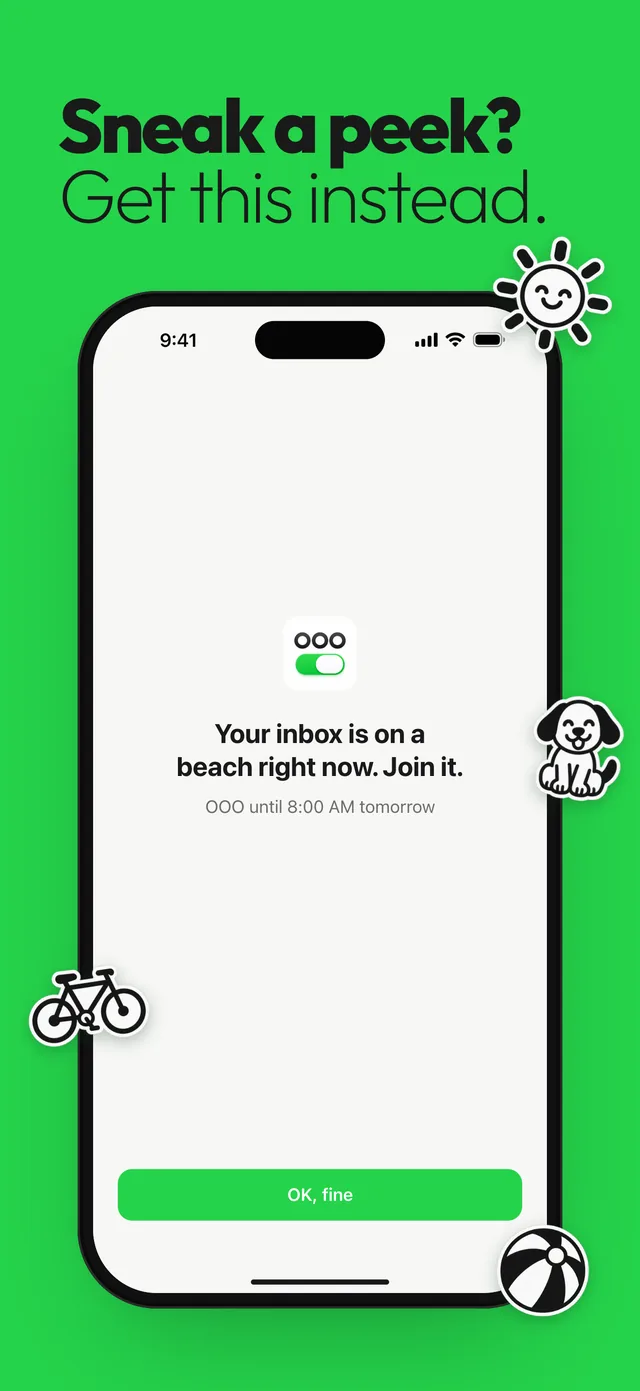
Out of Office is built for the work boundary and nothing else. You pick your work apps with Apple’s picker, choose Evenings, Weekends, custom hours or a Vacation range, and during those hours opening a work app shows a shield with a line like “Your inbox is on a beach right now. Join it.” and one button: “OK, fine”.
A big switch with “1 hour”, “Until 9 am” and “All weekend” covers the days that don’t follow the plan, and a heads-up arrives before each session starts and ends. There are no scores or streaks. It doesn’t silence notifications by itself, so pair it with Slack’s own schedule from how to stop Slack notifications after work.
The details are in the Out of Office app overview. For a weekend setup, read how to block work apps on weekends, and if you’re weighing Apple’s option, see Screen Time Downtime vs an app blocker.
Questions
What is the best app blocker for iPhone?
It depends on the job. For cutting social media time, a blocker with daily budgets or Apple’s App Limits works well. For keeping work apps closed after hours, pick one that blocks only work apps on a work-shaped schedule.
Can Screen Time block only work apps?
Not directly. Downtime blocks everything except the apps you mark Always Allowed, and App Limits set a daily time budget rather than off hours.
Does Focus mode block apps on iPhone?
No. A Focus silences notifications and can show a different Home Screen page, but the apps still open.
Can I get past an app blocker in an emergency?
Most blockers let you, and it’s worth checking before you choose. Out of Office lets you flip the switch off or tap End early at any time.
Sources
Menu names change between app and iOS versions. These are the official pages, checked October 9, 2026.