The short answer
Screen Time Downtime blocks almost every app on your iPhone except the ones you mark Always Allowed, on a schedule that repeats by day. An app blocker usually does the opposite and blocks only the apps you pick. If Downtime isn’t blocking apps, the usual cause is that Block at Downtime is off, and that setting needs a Screen Time passcode. For keeping work out of your evenings, Out of Office shields only the apps you pick, on evenings, weekends and vacation dates.
How does Screen Time Downtime work?
Downtime is part of Screen Time in iOS 26 and earlier. While it’s on, only calls, messages and the apps you choose to allow are available. To set it up:
- Go to SettingsScreen Time and turn on App & Website Activity if it’s off.
- Tap Downtime, then tap Scheduled. For a one-off, tap Turn On Downtime Until Tomorrow instead.
- Choose Every Day or Customize Days, then set the start and end times.
- Go back and tap Always Allowed to choose the apps and contacts that stay available.
A reminder arrives 5 minutes before scheduled Downtime starts.
Block at Downtime and the Screen Time passcode
By default, Downtime is a reminder, not a lock. When you open a restricted app, you see that it’s Downtime, but you can choose to keep using it. To make it a real block:
- Set a Screen Time passcode. Apple’s Screen Time passcode guide has the steps.
- In SettingsScreen TimeDowntime, turn on Block at Downtime.
With Block at Downtime on, restricted apps can’t be opened during Downtime. They appear dimmed with an hourglass icon. That’s why some people ask a partner to set a passcode they don’t know.
Where is Downtime in iOS 27?
Apple’s iPhone guide for iOS 27 doesn’t use the Downtime name. Schedules live in Screen Time Schedule instead:
- Go to SettingsScreen TimeScreen Time Schedule, then turn on Schedule.
- Tap Add Schedule and tap the days of the week it covers.
- Tap the time window to rename it, change the start or stop time, or choose which Time Allowance categories are available.
In place of App Limits, the iOS 27 guide describes Time Allowances, which set how long you can use categories like Entertainment, Games and Social Media each day. Always Allowed is still in SettingsScreen TimeAlways Allowed. Apple notes these features need iOS 27 or later on all your Apple devices, so if your iPad or Mac is still on an older version, update it before you rely on the new schedules.
Why is Downtime not blocking apps?
- Block at Downtime is off. Without it, Downtime only reminds you. It needs a Screen Time passcode.
- The app is in Always Allowed. Anything on that list stays available during Downtime.
- App & Website Activity is off. Turning it off also turns off Downtime, App Limits and Always Allowed.
- Today isn’t in the schedule. With Customize Days, each day has its own times. Check the day you’re on.
- Another device changed it. With Share Across Devices on, Downtime schedules are shared across your iPhone, iPad and Mac signed in to the same Apple Account.
- You’re on iOS 27. The settings moved to Screen Time Schedule, covered above.
Downtime vs a work app blocker
| Tool | What it blocks | Schedule | Vacation dates | Getting past it |
|---|---|---|---|---|
| Screen Time Downtime | Almost allEverything except Always Allowed | YesEvery day or custom days | NoRepeats weekly | DependsEasy unless Block at Downtime and a passcode are on |
| App Limits | After a budgetApps or categories once time runs out | NoMinutes per day, not hours | NoNo date range | DependsCan be ignored by default |
| Out of Office | Work appsOnly the apps you pick | YesEvenings, Weekends, custom | YesA one-off Vacation range | Any timeSwitch off or End early, on purpose |
When to use Downtime, and when a work app blocker fits
Downtime fits when you want the whole phone quiet, like a bedtime wind-down, or when someone else holds the passcode and you want a firm lock.
A work app blocker fits when the problem is just work. You want Slack, Teams and Outlook gone at 6 PM, but your maps, music, camera and family chat open.
That second job is what Out of Office does. You pick work apps with Apple’s picker, and during Evenings, Weekends, custom hours or a Vacation range, opening one shows a shield with a line like “OOO until 8:00 AM tomorrow”. Heads-ups arrive before a session starts and ends. It doesn’t silence notifications by itself, so pair it with a Focus or your apps’ own schedules from how to set quiet hours on iPhone.
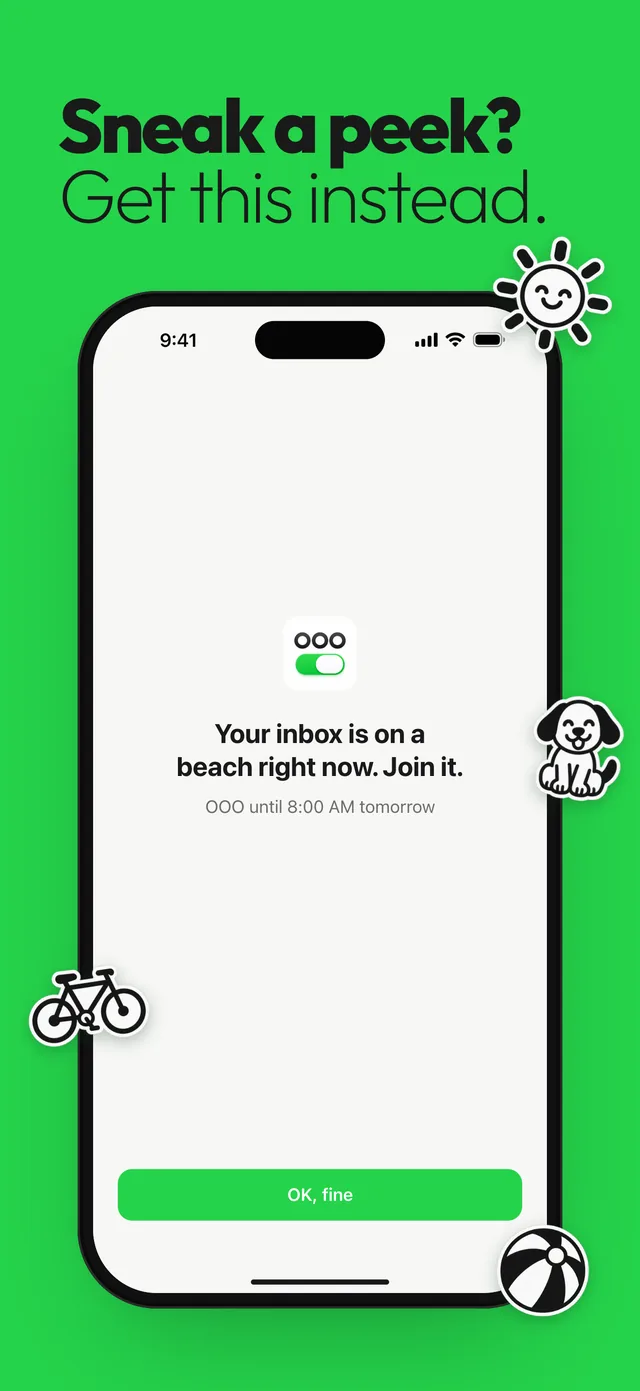
For the full rundown, read the Out of Office app overview, compare options in how to choose an app blocker for work, or set up weekend blocking for work apps.
Questions
Why is Downtime not blocking apps?
Usually because Block at Downtime is off, so Downtime only reminds you. Set a Screen Time passcode, then turn on Block at Downtime, and check that the app isn’t in Always Allowed.
Can Downtime block only certain apps?
Not directly. Downtime blocks everything except the apps you add to Always Allowed, so you’d need to allow every app you still want to use.
Where is Downtime in iOS 27?
Apple’s iOS 27 guide puts schedules in Settings, then Screen Time, then Screen Time Schedule, where you add a schedule for chosen days and set time windows.
Is Downtime better than an app blocker?
For a whole-phone break with a passcode someone else holds, Downtime is firmer. For blocking only work apps after hours, a work app blocker leaves the rest of your phone alone.
Sources
Menu names change between app and iOS versions. These are the official pages, checked October 9, 2026.