The short answer
To set quiet hours on iPhone, go to Settings > Focus, pick Do Not Disturb or create a custom Focus, and tap Add Schedule to set the hours. Choose which people and apps can still reach you, and turn off Time Sensitive Notifications if work apps keep breaking through. Quiet hours silence your phone but leave every app open. To keep work apps shut on the same hours, Out of Office shields them for you.
Does iPhone have quiet hours?
Not by that name. Search Settings for “quiet hours” and you won’t find a switch. What iPhone has instead is Focus: Do Not Disturb, Sleep, Personal, Work and any custom Focus you create. Each one can run on a schedule, which is what most people mean by quiet hours.
Around Focus sit a few helpers. Scheduled Summary batches notifications into set delivery times. Silent mode mutes sounds. Time Sensitive notifications are the ones that can still break through, so you’ll want to know where that switch lives.
Here’s how each one works, then what none of them can do.
How to set quiet hours on iPhone with a Focus schedule
A scheduled Do Not Disturb is the closest thing to classic quiet hours. You can also create a custom Focus, for example one called “Off work”, if you want different rules from your regular Do Not Disturb.
- Open SettingsFocus and tap Do Not Disturb. For a custom Focus, tap the add button, then tap Custom, name it, and tap Next.
- Tap People, then Apps, to choose who and what can reach you. For quiet hours from work, the simplest setup is to pick Silence Notifications From under Apps, then add Slack, Teams, Outlook and anything else from work.
- Tap Add Schedule, then set the times. A schedule can also start from a location, or when you open a specific app.
Repeat Add Schedule for different hours on different days, such as 6:00 PM to 8:00 AM on weekdays plus all of Saturday and Sunday. If you want different rules for work apps and for everything else, the guide to setting up a Work Focus and a Personal Focus walks through a two-Focus setup.
Stop Time Sensitive notifications breaking through
Apps can mark some notifications as Time Sensitive. In a Focus, open Apps and look for Time Sensitive Notifications. When it’s on, any app can send time-sensitive notifications straight through. Turn it off if work apps keep getting past your quiet hours. You can also turn it off per app in SettingsNotifications: tap the app and switch off Time Sensitive Notifications, if the app supports it.
Use Sleep Focus for bedtime quiet hours
Sleep is a Focus that follows the sleep schedule in the Health app instead of its own times. It filters notifications and calls, and can start at the beginning of a wind down period before bed.
- Open SettingsFocusSleep and choose the people and apps allowed through, the same way as any Focus.
- Tap Open Sleep in Health to set your bedtime and wake up time. You can add separate schedules, for example weekdays and weekends.
Sleep Focus suits a hard bedtime. For the stretch between leaving work and going to bed, a scheduled Do Not Disturb or custom Focus fits better, because Sleep is tied to your sleep schedule.
Batch or mute notifications instead of blocking them
Sometimes you don’t want silence, just fewer interruptions. Scheduled Summary holds notifications from the apps you pick and delivers them together at times you set.
- Open SettingsNotificationsScheduled Summary and turn it on.
- Set one or more delivery times, for example 8:00 AM and 6:00 PM.
- Tap A to Z under Apps in Summary and turn on the apps to include.
Silent mode is the bluntest tool. On iPhone models with an Action button set to Silent mode, press and hold it; on others, flip the Ring/Silent switch. It stops sounds, but the iPhone may still vibrate, and it has no schedule.
iPhone quiet hours options compared
| Option | Silences work notifications | Runs on a schedule | Stops work apps opening |
|---|---|---|---|
| Focus schedule | YesSilence the apps you pick | YesTime, location or app | NoApps open as normal |
| Sleep Focus | YesAllowed people and apps only | Bedtime onlyFollows your Health sleep schedule | NoApps open as normal |
| Scheduled Summary | Delays themDelivered in batches | YesDelivery times you set | NoApps open as normal |
| Out of Office | Pair with a FocusThe shield doesn’t mute banners | YesEvenings, weekends, vacation | YesA shield opens instead |
What iPhone quiet hours can’t do
Every option above works on notifications. None of them closes an app. Your phone goes quiet at 6:00 PM, then at 9:30 PM you open Slack to check one thing and you’re back at work. That’s the gap most people hit.
You have a few ways to put distance between you and the apps themselves. You can hide them, remove them from the Home Screen or sign out, all covered in how to turn off work apps on iPhone. Screen Time’s Downtime can block apps on a schedule, but it blocks everything except an allowed list. The guide to blocking work apps after hours compares those tools side by side.
Add closed hours for work apps
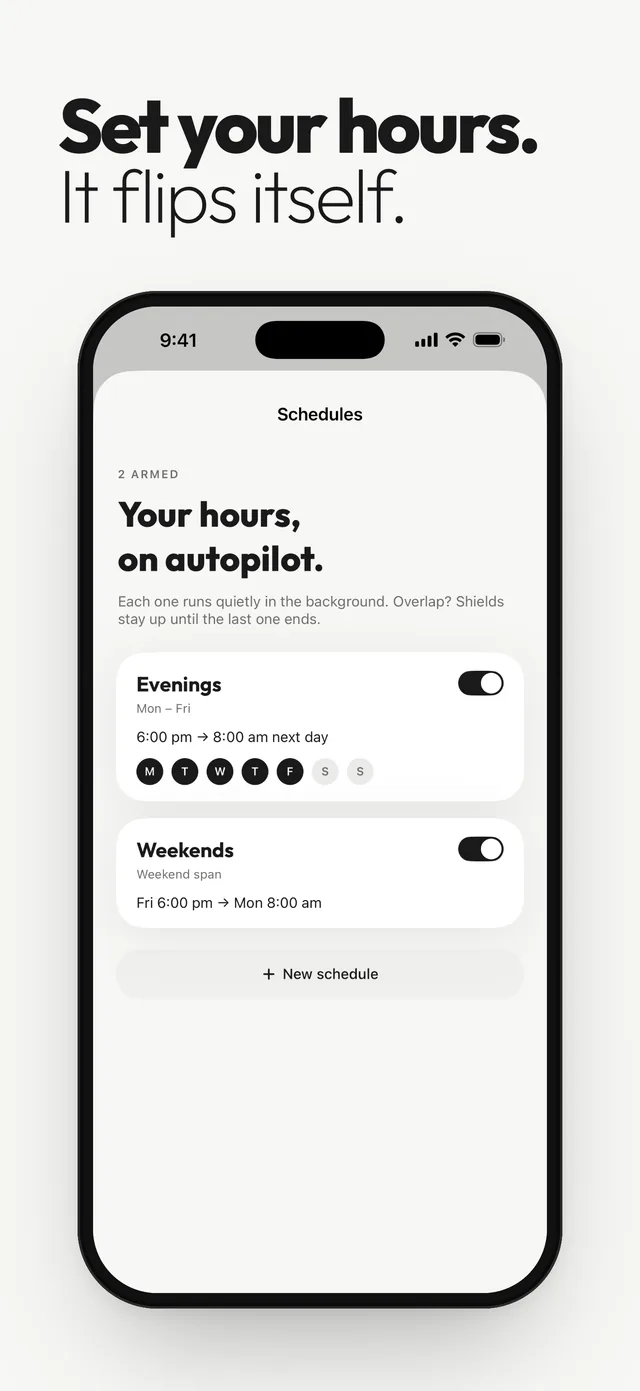
Out of Office adds the missing piece: closed hours for only the apps you call work. Pick them with Apple’s app picker, choose your hours, and during those hours opening one shows a shield instead of the app. Its only button says “OK, fine”. Maps, music, camera and your family chat stay open.
Schedules match how work runs: Evenings (6:00 PM to 8:00 AM, Monday to Friday, by default), Weekends, custom days and times, and Vacation for a one-off date range. A heads-up arrives before a session starts, and one switch turns it on or off whenever plans change.
Keep your Focus schedule running alongside it. The Focus quiets the banners; the shield keeps the apps closed.
Questions
Where are quiet hours on iPhone?
iPhone doesn’t have a setting called quiet hours. The equivalent is a Focus, such as Do Not Disturb, with a schedule added in Settings > Focus.
How do I schedule Do Not Disturb on iPhone?
Open Settings > Focus, tap Do Not Disturb, then tap Add Schedule and set the times. You can also set it to turn on at a location or when you open a specific app.
Why do some notifications still come through during Do Not Disturb?
Notifications marked Time Sensitive can break through when Time Sensitive Notifications is on for that Focus. Turn it off in the Focus’s Apps settings, or per app in Settings > Notifications.
Can I set different quiet hours for weekends?
Yes. Add more than one schedule to the same Focus, for example weekday evenings and a separate all-day schedule for Saturday and Sunday.
Do quiet hours stop me opening work apps?
No. A Focus only filters notifications, so apps still open normally. To keep work apps closed during set hours, use Screen Time or an app built on it, like Out of Office.
Sources
Menu names change between app and iOS versions. These are the official pages, checked October 9, 2026.