The short answer
To set up a Work Focus, open Settings > Focus > Work, allow your coworkers and work apps, pick your work Home Screen page, and tap Add Schedule for your working hours. Then set up a Personal Focus for your off hours that silences work apps and hides that page. A Focus hides work, but it can’t close it. Out of Office keeps your work apps shut on the same hours.
What a Work Focus does on iPhone
Work is one of the Focus options iPhone already includes, next to Do Not Disturb, Personal and Sleep. A Focus decides which people and apps can send you notifications, which Home Screen pages and Lock Screen you see, and, with Focus filters, which mail account and calendars show up.
The trick is to use two of them. A Work Focus during the day lets work through and hides the distractions. A Personal Focus in the evening does the reverse: it silences work and hides your work apps. Each runs on its own schedule, so the switch happens without you.
How to set up a Work Focus
First, put your work apps on one Home Screen page. Touch and hold the Home Screen background until the apps jiggle, then drag Slack, Teams, Outlook and the rest onto the same page.
- Open SettingsFocus and tap Work.
- Tap People, then Allow Notifications From, and add your coworkers. Tap Apps, then Allow Notifications From, and add your work apps.
- Tap the Home Screen preview and select your work page, plus any others you want during the day. Tap Done.
- Tap Add Schedule and set your working hours, for example 9:00 AM to 6:00 PM on weekdays. A schedule can also start at a location, like your office, or when you open a specific app.
To give the Focus its own look, link it to a Lock Screen. Press the side button, touch and hold the Lock Screen until Customize appears, tap Focus near the bottom of the wallpaper, and pick Work.
Set up a Personal Focus that hides work after hours
This is the half most people skip, and it’s the one that gives you your evenings back.
- Open SettingsFocus and tap Personal.
- Tap Apps, then Silence Notifications From, and add your work apps.
- In the same Apps screen, turn off Time Sensitive Notifications so work apps can’t break through with urgent-looking alerts.
- Tap the Home Screen preview and select only your non-work pages. Tap Done.
- Tap Add Schedule and set your off hours, for example 6:00 PM to 9:00 AM on weekdays. Add a second schedule for the weekend.
Tap Options if you also want silenced notifications kept off the Lock Screen, or the Lock Screen dimmed while Personal is on.
Leaving early on a Friday? Open Control Center, tap Focus, then tap Personal to start it now. The options button next to it lets you pick an end point, such as “For 1 hour”. If another Focus is on, it turns off when you tap the new one.
Now your work page disappears when Personal starts, and comes back with Work in the morning. For the other quiet hours options, like Sleep Focus and Scheduled Summary, see the guide to iPhone quiet hours.
Filter work Mail and Calendar in a Focus
Focus filters change what an app shows while a Focus is on. With Mail and Calendar, they keep work email and meetings in their lane.
- Open SettingsFocus and tap Personal.
- Scroll down to Focus filters and tap Add Filter.
- Tap Mail, select your personal accounts, and tap Add.
- Add another filter for Calendar, select your personal calendars, and tap Add.
Do the reverse in your Work Focus if you want only your work account and calendar during the day. Some third-party apps offer their own Focus filters too. If an app supports one, it appears in the same Add Filter list.
Share your Work Focus across devices
To use the same Focus settings on your iPad and Mac, open SettingsFocus and turn on Share Across Devices. Your devices need to be signed in to the same Apple Account.
What a Work Focus can’t do
A Personal Focus silences work notifications and hides your work page. It doesn’t close anything. Slack is still in App Library and in search, and it opens with one tap. Once you’re in, every unread message is right there.
Out of Office covers that gap. Pick your work apps with Apple’s app picker, set your off hours (Evenings run 6:00 PM to 8:00 AM, Monday to Friday, by default), and opening one of them during those hours shows a shield instead of the app. Everything else on your phone stays open.
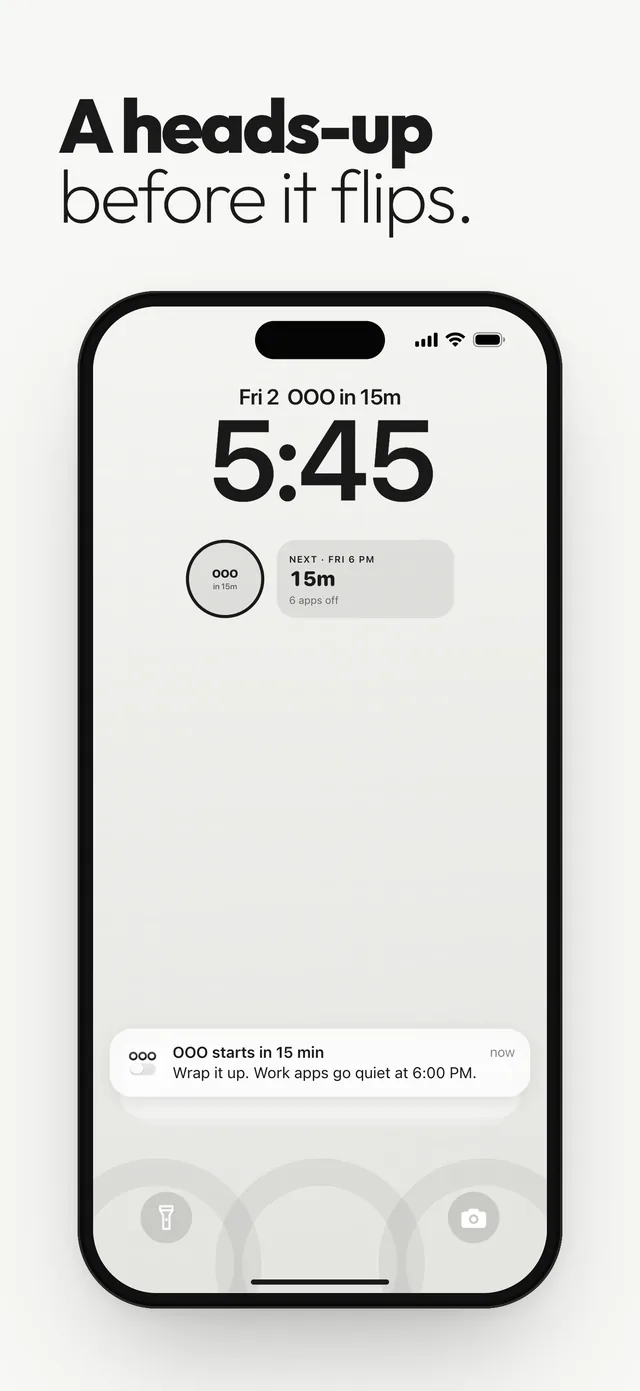
Match its schedule to your Personal Focus and the two work as a pair: the Focus quiets the banners, the shield keeps the apps closed. A heads-up arrives before each session starts, so you have time to send that last message.
Questions
How do I turn on Work Focus on iPhone?
Open Control Center, tap Focus, then tap Work. To have it turn on by itself, go to Settings > Focus > Work and tap Add Schedule.
Can a Focus hide apps on iPhone?
A Focus can hide whole Home Screen pages while it’s on. The apps are still in App Library and search, and they still open.
Can I filter my work email with a Focus?
Yes. In Settings > Focus, tap a Focus, then Add Filter under Focus filters, choose Mail and select the accounts to use during that Focus.
Does Work Focus sync to my Mac and iPad?
Turn on Share Across Devices in Settings > Focus to use the same Focus settings on devices signed in to the same Apple Account. Focus filters don’t sync, so set those up on each device.
Sources
Menu names change between app and iOS versions. These are the official pages, checked October 9, 2026.