The short answer
No. Focus mode doesn’t block apps on iPhone: it filters notifications and can hide Home Screen pages, but every app still opens when you tap it. To stop apps opening, use Screen Time’s Downtime or App Limits, or an app built on Screen Time, like Out of Office.
Does Focus mode block apps on iPhone?
No. A Focus filters notifications. It decides which people and apps can reach you while it’s on, but every app on your iPhone still opens when you tap it. Slack in a Personal Focus is still Slack, with every unread message inside.
The confusion is fair. A Focus can hide Home Screen pages, so apps look like they’re gone. But a hidden page only changes what you see. The apps are still in App Library and search, and they open as normal.
What Focus actually does
Open SettingsFocus and tap any Focus, such as Do Not Disturb, Personal or Work. Here’s what it can control:
- People and Apps: allow notifications from only the people and apps you choose, or silence specific ones.
- Time Sensitive notifications: let any app’s time-sensitive alerts through, or turn that off.
- Home Screen and Lock Screen: show only certain Home Screen pages, and switch to a Lock Screen linked to that Focus.
- Focus filters: choose which mail account and calendars show in Mail and Calendar during the Focus.
- Schedules: turn on at set times, at a location, or when you open a specific app.
- Focus status: let people in Messages see you have notifications silenced.
Every item on that list is about attention: what reaches you and what you see. None of them stops an app launching. For a full walkthrough of the day and evening setup, see how to set up a Work Focus on iPhone.
What does block apps on iPhone
Blocking an app, so it won’t open, is Screen Time’s job. On iOS 26 it has two tools for that.
Downtime
- Open SettingsScreen Time and make sure App & Website Activity is on.
- Tap Downtime, then Scheduled. Choose Every Day or Customize Days, and set the start and end times.
- Set a Screen Time passcode, then turn on Block at Downtime. Without it, you only see a reminder and can keep using the apps.
- Tap Always Allowed in Screen Time and add the apps you still want during downtime.
During downtime, only phone calls and the apps and contacts you allow are available. Blocked apps appear dimmed with an hourglass icon.
App Limits
Go to SettingsScreen TimeApp Limits, tap Add Limit, choose categories or individual apps, tap Next and set a daily time. Customize Days lets you set a different amount per day. When the time runs out, you hit the limit. By default you can choose to ignore it, so set a Screen Time passcode if you want it to hold.
On iOS 27, Apple’s guide describes these controls as Screen Time Schedule and Time Allowances, still under SettingsScreen Time.
Focus vs Downtime vs App Limits
| Tool | Stops the app opening | Only the apps you pick | Runs on set hours |
|---|---|---|---|
| Focus | NoFilters notifications | Yes | Yes |
| Downtime | YesWith Block at Downtime | NoYou list what stays open | YesRepeats by weekday |
| App Limits | After a budgetOnce the daily time runs out | Yes | NoA daily budget, not hours |
| Out of Office | YesA shield opens instead | YesOnly your work apps | YesPlus vacation date ranges |
When to use Focus, Screen Time or Out of Office
- You want a quiet phone, not a locked one: use a Focus. It’s the right tool for iPhone quiet hours.
- You want the whole phone off at bedtime: use Downtime, with an Always Allowed list for calls and essentials.
- You want to cap time in an app: use App Limits.
- You want a work app gone for a while: hide, offload or sign out. All the options are in how to turn off work apps on iPhone.
- You want only work apps closed during your off hours: that’s the gap Out of Office fills.
Out of Office is built on Apple’s Screen Time framework, the same system behind Downtime, but it’s aimed at one job. Pick your work apps with Apple’s app picker, choose when work ends (Evenings run 6:00 PM to 8:00 AM, Monday to Friday, by default, plus Weekends, custom times and Vacation date ranges), and opening one of those apps during that time shows a shield. Maps, music, banking and your family chat stay open.
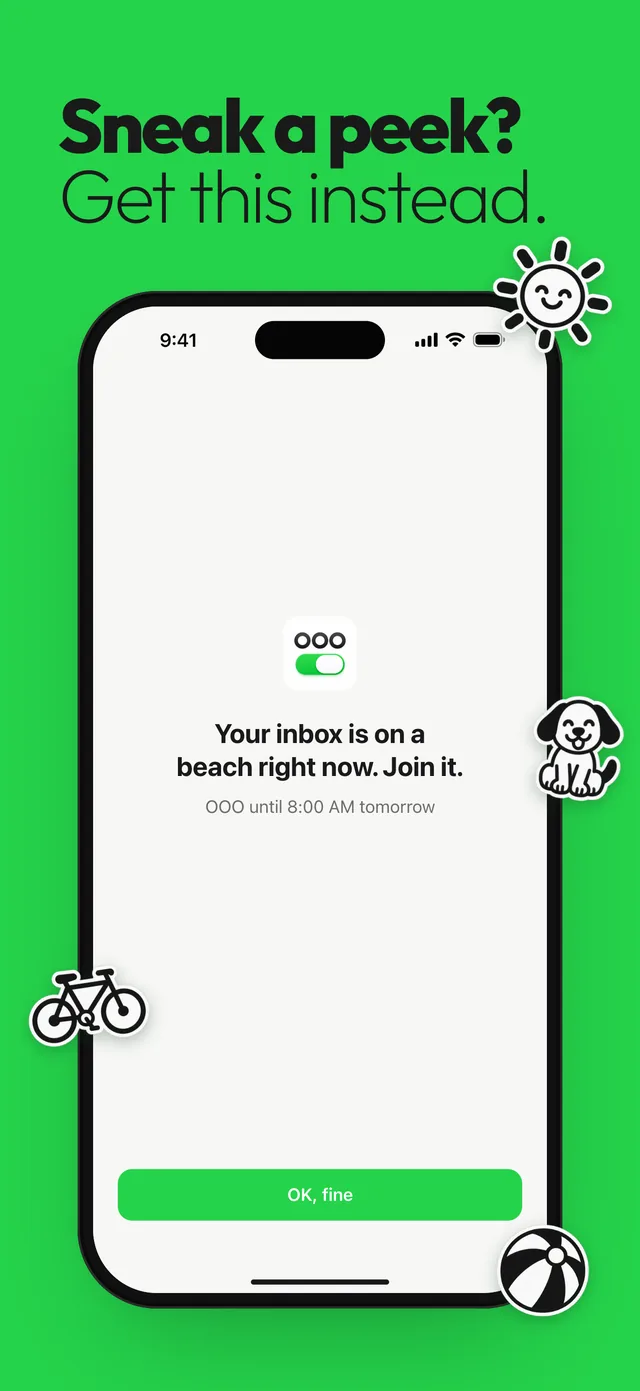
A shield doesn’t silence notifications on its own, so keep a Focus running for the same hours. And it’s your phone: you can flip the switch off or tap “End early” any time. For a deeper look at all four tools, see how to block work apps after hours on iPhone.
Questions
Does Do Not Disturb block apps on iPhone?
No. Do Not Disturb is a Focus, so it silences notifications and calls but doesn’t stop any app opening.
Can Focus mode hide apps?
A Focus can show only certain Home Screen pages while it’s on, so apps on other pages are out of sight. They’re still in App Library and search, and they still open.
How do I block an app at certain times on iPhone?
Use Screen Time Downtime with Block at Downtime turned on, which blocks everything except the apps you allow. To block only a few apps, like Slack and Teams, on a schedule, use an app built on Screen Time, like Out of Office.
Is Downtime the same as Focus?
No. Downtime is part of Screen Time and makes apps unavailable during set hours. Focus only filters notifications and changes what you see.
Sources
Menu names change between app and iOS versions. These are the official pages, checked October 9, 2026.