The short answer
To turn off a work app on iPhone, go to Settings > Notifications, tap the app and turn off Allow Notifications. To get it out of sight too, touch and hold its icon and tap Require Face ID > Hide and Require Face ID (iOS 18 or later), or use Screen Time or Out of Office to block it on a schedule.
Ways to turn off work apps on iPhone
“Turn off” can mean three different things: stop the notifications, get the app out of sight, or stop it opening at all. iPhone has a tool for each, and most of them take seconds to undo.
| Method | What it does | Stops it opening | Quick to undo |
|---|---|---|---|
| Turn off notifications | Silences the app | No | YesOne switch |
| Hide and Require Face ID | Moves it to a Hidden folder | NoOpens after Face ID | YesiOS 18 or later |
| Remove from Home Screen | Moves it to App Library | No | Yes |
| Offload App | Removes the app, keeps its data | YesUntil you reinstall | SlowerNeeds a download |
| Sign out or turn off Mail | Stops that account on the phone | NoOpens signed out | DependsSigning in takes longer |
| Focus Home Screen pages | Hides work pages on a schedule | NoApp Library and search | YesAutomatic |
| Out of Office | Shields the apps you pick on a schedule | YesA shield opens instead | YesOne switch |
Turn off notifications for a work app
This is the quickest fix and the easiest to reverse.
- Open SettingsNotifications.
- Tap the work app, for example Slack or Outlook.
- Turn off Allow Notifications.
To turn notifications back on, flip the same switch. If you only want them off in the evening, use a Focus schedule instead, as in the guide to iPhone quiet hours, so you don’t have to remember to switch them back every morning.
Hide, remove or offload a work app
Hide and lock it (iOS 18 or later)
- On the Home Screen, touch and hold the app until the quick actions menu opens.
- Tap Require Face ID (or Touch ID or Passcode), then tap Hide and Require Face ID.
- Authenticate, then tap Hide App.
The app moves to a Hidden folder at the bottom of App Library and drops out of search. Opening it takes Face ID, Touch ID or your passcode. To see what’s hidden, go to SettingsAppsHidden Apps. To bring an app back, open the Hidden folder, touch and hold the app, and tap Don’t Require Face ID. Only apps you downloaded from the App Store can be hidden, so this works for Slack, Teams and Outlook but not Apple Mail.
Remove it from the Home Screen
Touch and hold the app, tap Remove App, then tap Remove from Home Screen. Nothing is deleted. The app moves to App Library, where you can touch and hold it and tap Add to Home Screen to put it back.
Offload it
Open SettingsGeneraliPhone Storage, tap the app, then tap Offload App. This removes the app but keeps its documents and data, so you can reinstall it later without losing anything. It’s a good fit for a long break, but it’s slow to undo, because getting the app back means downloading it again.
Sign out of the work account
If your work email lives in Apple Mail, you can switch the account off without deleting it.
- Open SettingsAppsMailMail Accounts.
- Tap your work account.
- Turn off Mail. For an iCloud account, turn off “Use on this iPhone”.
Turn it back on the same way. For Slack, Teams, Outlook or Gmail, you can sign out from inside each app instead. That’s the most complete way to step away, but signing back in can mean passwords and a security code, so it suits a vacation better than a weeknight. For trips, see how to turn off work email on vacation.
Hide work apps after hours with a Focus
A Focus can show only certain Home Screen pages while it’s on. Put your work apps on one page, then leave that page out of your evening Focus.
- Touch and hold the Home Screen background until the apps jiggle, and drag your work apps onto one page.
- Open SettingsFocus and tap the Focus you use after work, such as Personal.
- Tap the Home Screen preview, select only your non-work pages, and tap Done.
- Under Apps, silence your work apps, then tap Add Schedule and set your off hours.
The full two-Focus setup is in how to set up a Work Focus on iPhone.
Block work apps on a schedule
To make work apps unavailable during set hours, you need Screen Time. Its Downtime setting blocks apps on a schedule, but it works the other way round: everything is blocked except the apps you allow, so you end up listing most of your phone.
Out of Office blocks only the apps you pick. Choose your work apps with Apple’s app picker and set your hours: Evenings (6:00 PM to 8:00 AM, Monday to Friday, by default), Weekends, custom days and times, or a Vacation date range. During those hours, opening a work app shows a shield instead, with one button: “OK, fine”.
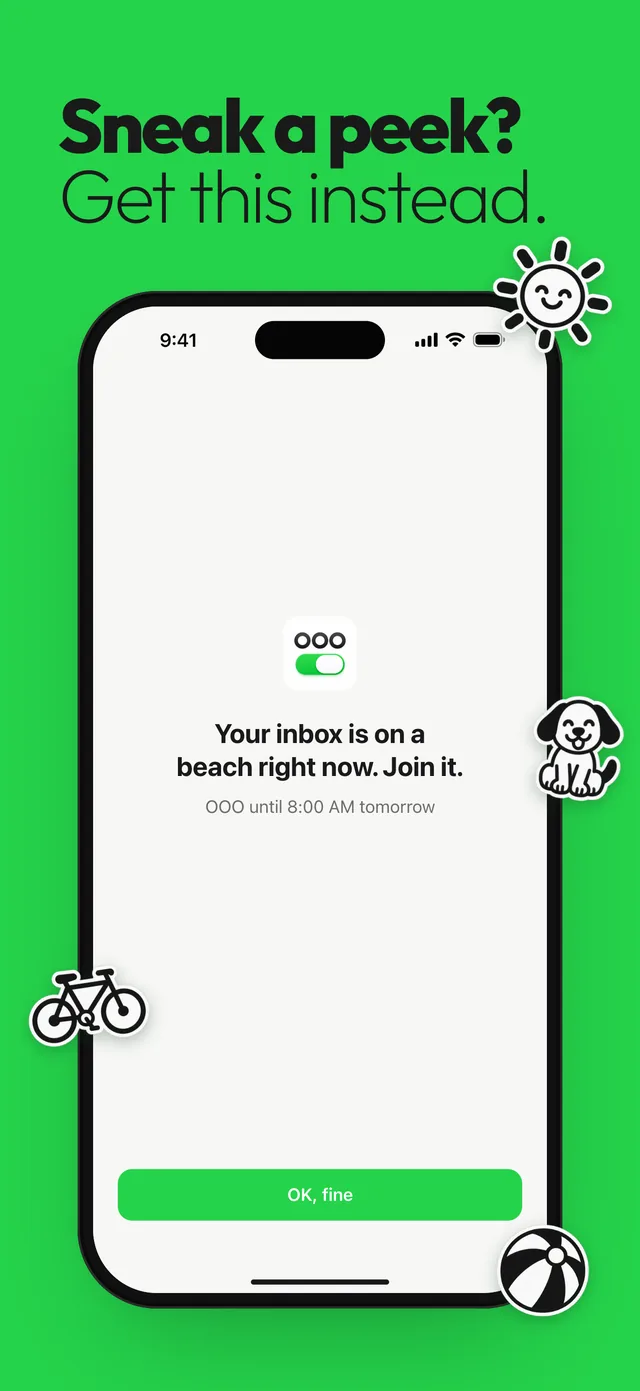
It’s quick to reverse, too. One switch on the home screen turns it on or off, and when it’s on you can tap “End early” or “Extend 1 hr”. A shield doesn’t silence banners on its own, so keep notifications off or a Focus running for the same apps.
Questions
How do I temporarily disable a work app on iPhone?
The quickest way is to turn off its notifications in Settings > Notifications. To stop it opening during set hours, use Screen Time Downtime or an app built on Screen Time, like Out of Office.
Can I hide work apps on iPhone without deleting them?
Yes. On iOS 18 or later, touch and hold the app, tap Require Face ID, then Hide and Require Face ID. It moves to a Hidden folder in App Library, and nothing is deleted.
Does offloading an app delete my data?
No. Offload App removes the app but keeps its documents and data, so they’re there when you reinstall it.
How do I turn off my work email account on iPhone?
Go to Settings > Apps > Mail > Mail Accounts, tap the work account and turn off Mail. Turn it back on the same way when you need it.
Sources
Menu names change between app and iOS versions. These are the official pages, checked October 9, 2026.