The short answer
To set out of office in Outlook on iPhone, go to Settings, tap your work account, tap Automatic Replies and turn it on. Turn on Reply during a time period to set the dates, write your message and tap Save. It works for Microsoft 365, Exchange and Outlook.com accounts.
Which Outlook accounts support automatic replies
Outlook for iOS can set automatic replies for these account types:
- Microsoft 365 (most work and school accounts)
- Exchange and Exchange (Hybrid)
- Outlook.com
If you’ve added a Gmail, Yahoo or other IMAP account to Outlook, the option isn’t there for that account. Set the reply with that provider instead. For Gmail, see how to set out of office in Gmail on iPhone. For everything else, the out of office on iPhone guide covers each account type.
Turn on automatic replies in Outlook for iPhone
- Open Outlook, tap the menu at the top left of your Inbox, then tap Settings.
- Under your accounts, tap your work account.
- Tap Automatic Replies and turn the switch on.
- Write your message: when you’re back and who to contact instead.
- Tap Save.
The reply is stored with your account on the mail server, not on your phone, so it keeps answering while your iPhone is off or Outlook is closed. To end it early, come back to the same screen and turn the switch off.
If your work account lives in Apple’s Mail app instead, there’s an Automatic Reply option in SettingsAppsMailMail Accounts under your Exchange account. Either one works, and you only need to set it once.
Schedule an out of office for specific dates
Without dates, the reply runs until you turn it off. With them, it starts and stops by itself, so you can set it up a week before you leave.
- In Automatic Replies, turn on Reply during a time period.
- Set the start and end time. A good habit: end it the evening of your first day back, so your first morning is for catching up.
- Optional: turn on Block my calendar and give the event a name. Outlook adds an out of office event for the same period, so nobody books you.
- Optional: tap Clear my calendar and choose which meetings in that window to cancel or decline.
Different replies for your organization and outside senders
Your team needs the detail (who covers what). A customer or a newsletter doesn’t. Outlook mobile lets you choose:
- Reply only to your organization: colleagues get the auto-reply, outside senders get nothing.
- Reply to everyone: you can then use different messages for your organization and for external senders.
If you use Teams at work, your Outlook automatic reply and Teams out of office stay in sync. Change one and the other follows. See setting out of office in Teams on iPhone.
What to write in your Outlook out of office
Keep it short. People read the first two lines and decide whether to wait or go elsewhere. Say when you’re back, who to contact, and nothing about where you are.
For your organization
“I’m out until Wednesday 14 October and not checking email. For the Q4 budget, contact Priya. For anything else urgent, contact my manager, Sam. I’ll reply when I’m back.”
For outside senders
“Thanks for your email. I’m away until 14 October. If it can’t wait, please write to [email protected] and the team will help.”
Leave out phone numbers you don’t want shared with strangers, and avoid “limited access to email”. It invites people to expect a reply anyway.
Silence Outlook with Do Not Disturb
Outlook has its own Do Not Disturb. In your Inbox, tap the menu at the top left, tap the alarm icon, choose the option that fits and tap the checkmark. It’s good for an evening or a weekend.
If you also use Teams, its quiet hours can do the same job on a schedule. Turn on Set on Teams and Outlook in Teams quiet hours and the schedule applies to both mobile apps. Setup is in Teams quiet hours on iPhone.
For a whole trip, switch off Outlook’s notifications in iOS instead: SettingsNotificationsOutlook, then turn off Allow Notifications. Remember to turn them back on when you’re home.
Keep Outlook closed while you’re out
Screen Time can block Outlook, but Downtime repeats by weekday and App Limits are a daily time budget. Neither has a “until the 14th”. Out of Office does: add a Vacation range with a start and an “Unblocks” time, and Outlook opens to a shield until then.
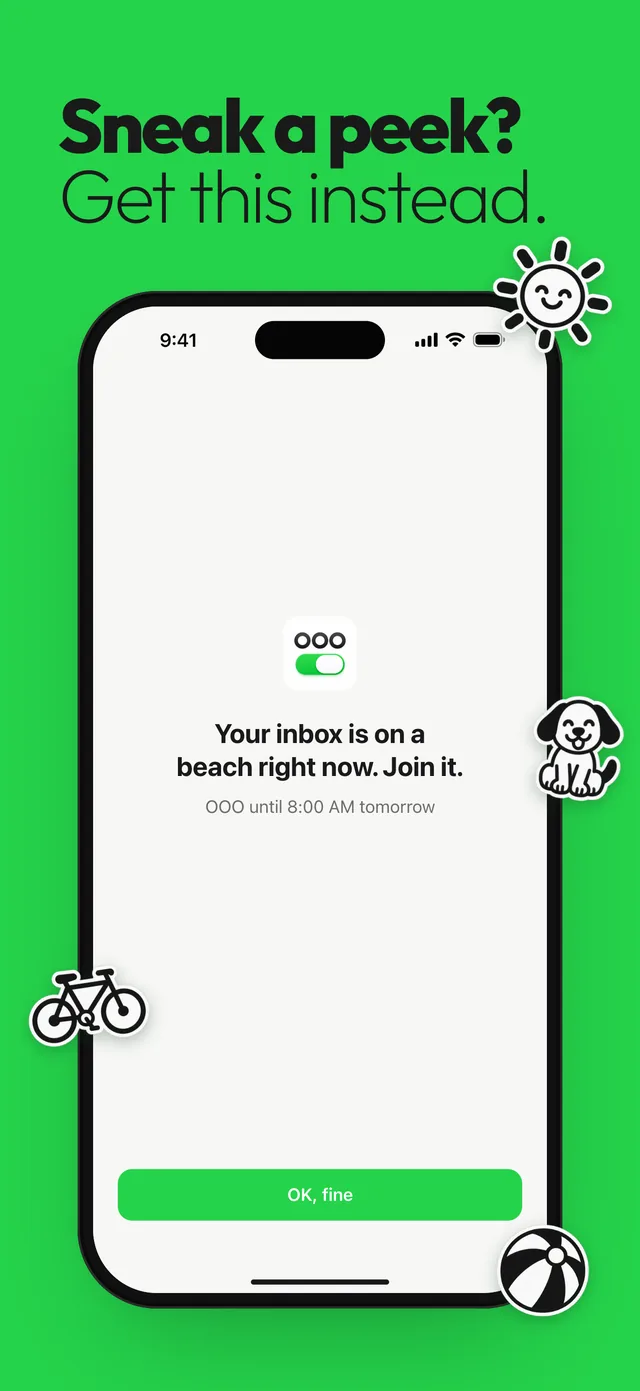
Everything else on the phone stays open. Pick Teams and Slack too, and they stay shielded for the same dates. If you overlap it with your Evenings schedule, the shields stay up until the last one ends.
Questions
How do I set out of office on the Outlook app on iPhone?
Go to Settings, tap your account, tap Automatic Replies and turn it on. Turn on Reply during a time period to set dates, write your message and tap Save.
Why can’t I find Automatic Replies in Outlook on my iPhone?
Outlook mobile supports automatic replies for Microsoft 365, Exchange and Outlook.com accounts. If the account is Gmail, Yahoo or another IMAP account, set the reply with that provider instead.
Can I send a different out of office to people outside my company?
Yes. In Automatic Replies, choose to reply to everyone, then use different messages for your organization and for external senders. Or reply only to your organization.
Does Outlook out of office on iPhone sync with my computer?
Yes. The reply is stored on the mail server, so it applies everywhere you use that account, and it also syncs with your Teams out of office.
Sources
Menu names change between app and iOS versions. These are the official pages, checked October 9, 2026.